Auto Media Publisher
03.2026 - ongoing - Last updated Oct 7, 2026
I built Auto Media Publisher for my church's AV team to simplify weekly video publishing. The desktop app automates media processing and YouTube uploads, with shared organization workspaces that let volunteers publish without setting up their own Google project credentials.
Download and Setup
Download the latest release, then choose the installer for your computer:
- Windows:
AutoMediaPublisher-Setup-[latest].exe - Mac (Apple silicon):
AutoMediaPublisher-[latest]-arm64.dmg
Publishing with a team? Open Organization Setup. Connecting your own channel? Open Personal Setup.
Mac installation notes
The Mac version is unsigned. After installing the application, you may need to remove its quarantine attribute to open it.
The command is:
xattr -cr /Applications/AutoMediaPublisher.app
If you installed the app elsewhere, run xattr -cr [path to app] with its actual path.
Organization Setup — publish with your team
Organization members do not need to import personal Google Cloud credentials when publishing through an organization's connected YouTube channel.
Organization owners and administrators can:
- Create and manage organization workspaces
- Invite members by email
- Assign role-based permissions
- Connect a shared YouTube channel
- Create shared publishing presets
To join an existing team:
- Accept the email invitation through the web application.
- Sign in to the desktop application and select your Organization workspace.
- Use the organization's connected channel and shared presets to publish according to your assigned role.
You can switch between Personal and Organization workspaces in the desktop application.
Personal Setup — connect your own channel
If you already have a Google Cloud project and credentials, skip steps 2–6 and import your credentials JSON file in step 7.
- Download and run the installer.
- Create a Google Cloud project.
- Enable the YouTube Data API v3.
- In Google Cloud Console, go to Credentials, then select Create Credentials → OAuth client ID.
- Select Desktop App as the application type.
- Download the OAuth client credentials JSON file.
- Open Auto Media Publisher and click on Import Credentials.
- Choose the downloaded credentials JSON file.
- Click Connect YouTube. When a browser window opens, authorize the Google account associated with your channel.
A Google Cloud project and YouTube Data API credentials are required because uploads are performed directly through the official YouTube API on behalf of your channel.
Once configured, subsequent uploads only require selecting your media files, entering metadata, and clicking Publish.
To add credential files manually, use these file names and locations:
- Mac:
~/Library/Application Support/AutoMediaPublisher/google-token.json~/Library/Application Support/AutoMediaPublisher/gcp-token.json
- Windows:
%APPDATA%\Roaming\AutoMediaPublisher\google-token.json%APPDATA%\Roaming\AutoMediaPublisher\gcp-token.json
All features
- Process multiple media clips through a one-click FFmpeg rendering, audio processing, and YouTube publishing workflow
- Run long-running media processing in background Python workers with real-time progress updates
- Configure video titles, descriptions, custom thumbnails, visibility, and playlists
- Select CPU or GPU hardware acceleration and processing performance
- Switch between Personal and Organization publishing workspaces
- Create and manage organizations with owner, admin, publisher, and member roles
- Invite organization members through email with role-based access control
- Create and share organization publishing presets
- Connect and manage shared organization YouTube channels
- Publish to organization channels without distributing long-lived Google credentials to members
- Receive desktop notifications for completed uploads and warnings
- Automatically update Windows installations
- Track organization activity through an audit log of member, preset, invitation, and YouTube connection changes
How I Built It
I originally built Auto Media Publisher for my church's weekly video workflow. It turned roughly 1.5 hours of manual preparation, editing, and uploading into a largely one-click process for non-technical users.
The current application combines an Electron/React desktop interface with a Python media-processing worker and a deployed FastAPI/Supabase backend. Personal publishing remains local-first, while organization workspaces provide shared presets, role-based access, invitations, and centrally managed YouTube connections for team workflows.
The project began as a cloud-based media processing platform hosted on Azure with student credits. Because recordings often exceeded tens of gigabytes, storing and processing them in the cloud made storage and compute costs impractical. I redesigned the system as a desktop-first application that uses local compute while preserving much of the original job-based workflow.
Problem
Publishing recorded services involved several manual steps:
- Exporting and transcoding large video files
- Creating thumbnails
- Entering titles and descriptions
- Uploading videos
- Monitoring upload progress
- Managing errors and failed uploads
This process was time-consuming and difficult to delegate to volunteers with varying technical backgrounds.
How might we reduce the technical overhead of publishing media content while making the workflow accessible to non-technical users?
Requirements
- Support large video files (including MXF recordings)
- Provide a simple guided workflow
- Display processing progress and status updates
- Automatically generate publish-ready assets
- Continue functioning on a standard consumer PC
- Handle failed processing gracefully
- Minimize user interaction
Desktop Implementation
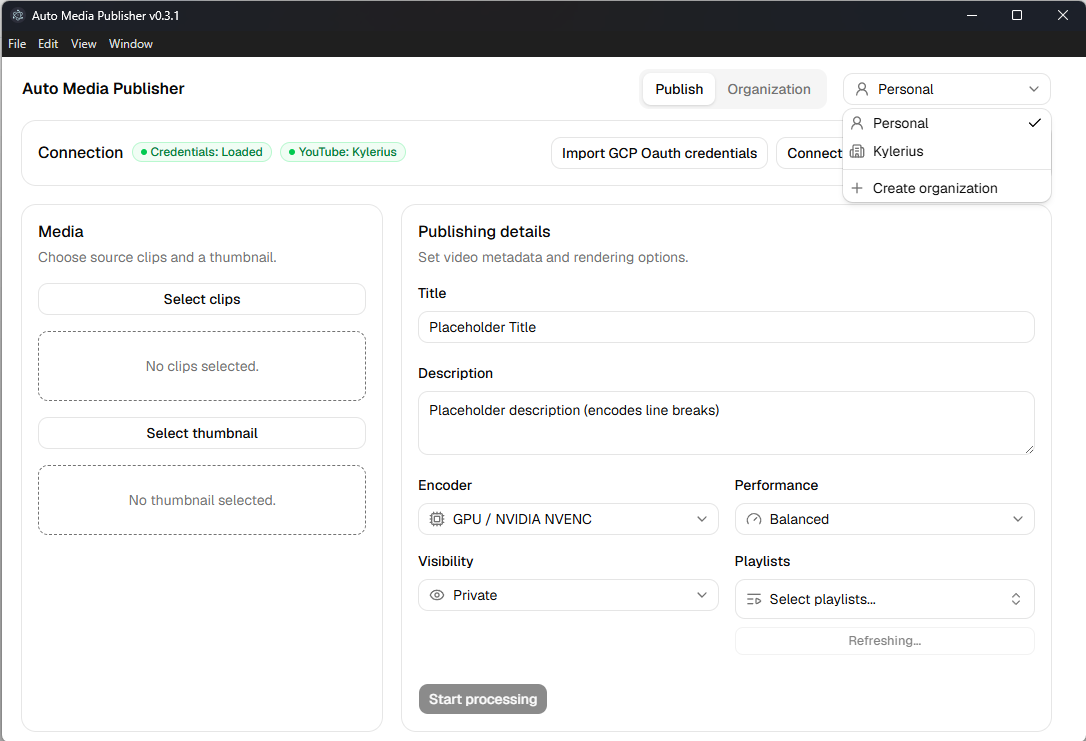
The application follows a job-based processing pipeline:
- Select video files and thumbnail
- Enter metadata such as title and description
- Launch a background processing job
- Transcode and prepare media assets using FFmpeg
- Upload assets and monitor publishing progress
- Surface warnings, errors, and completion status to the user
The desktop interface is built with Electron and React, while media processing is delegated to a Python worker process. Long-running tasks execute independently of the user interface and communicate progress updates back to the renderer through IPC events. This architecture keeps the application responsive even when processing multi-gigabyte video files.
Organization Workspaces
Automating media processing solved only part of our AV team's workflow. Delegating publishing still meant distributing Google project credentials and helping volunteers configure YouTube authorization. Some volunteers lacked channel access; others did not want to manage the technical setup.
I added an organization backend so an authorized administrator could connect the channel centrally and volunteers could publish through a shared workspace according to their assigned role. Media processing stayed on the desktop, while the backend managed organization membership, shared presets, and channel authorization.
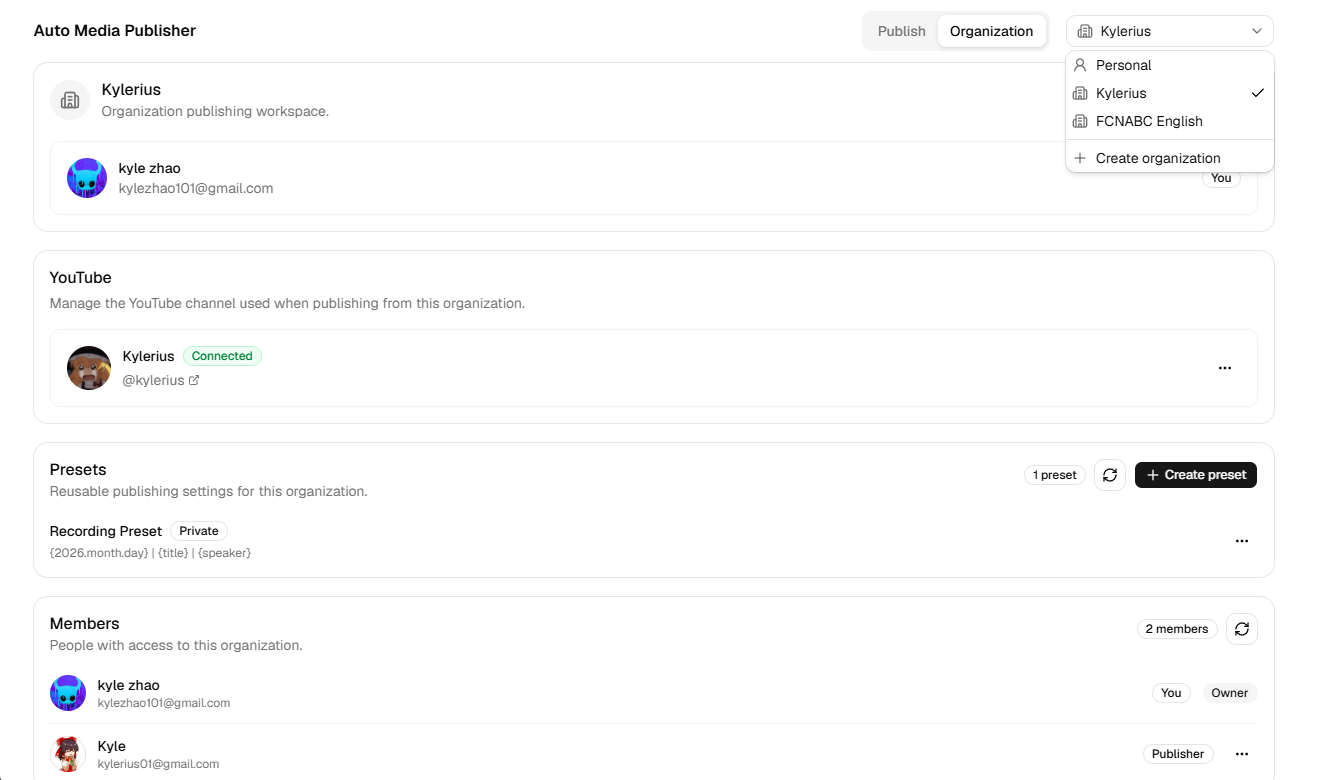
The desktop application also supports shared organization workspaces for teams managing a common YouTube channel. While personal publishing keeps Google credentials locally on the user's device, organization workspaces use a deployed FastAPI and Supabase/PostgreSQL backend to manage shared state and authentication.
Organizations support:
-
Owner, admin, publisher, and member roles with role-based access control
-
Email-based invitations and member management
-
Shared publishing presets
-
Organization-level YouTube connections
-
Shared playlist access and publishing permissions
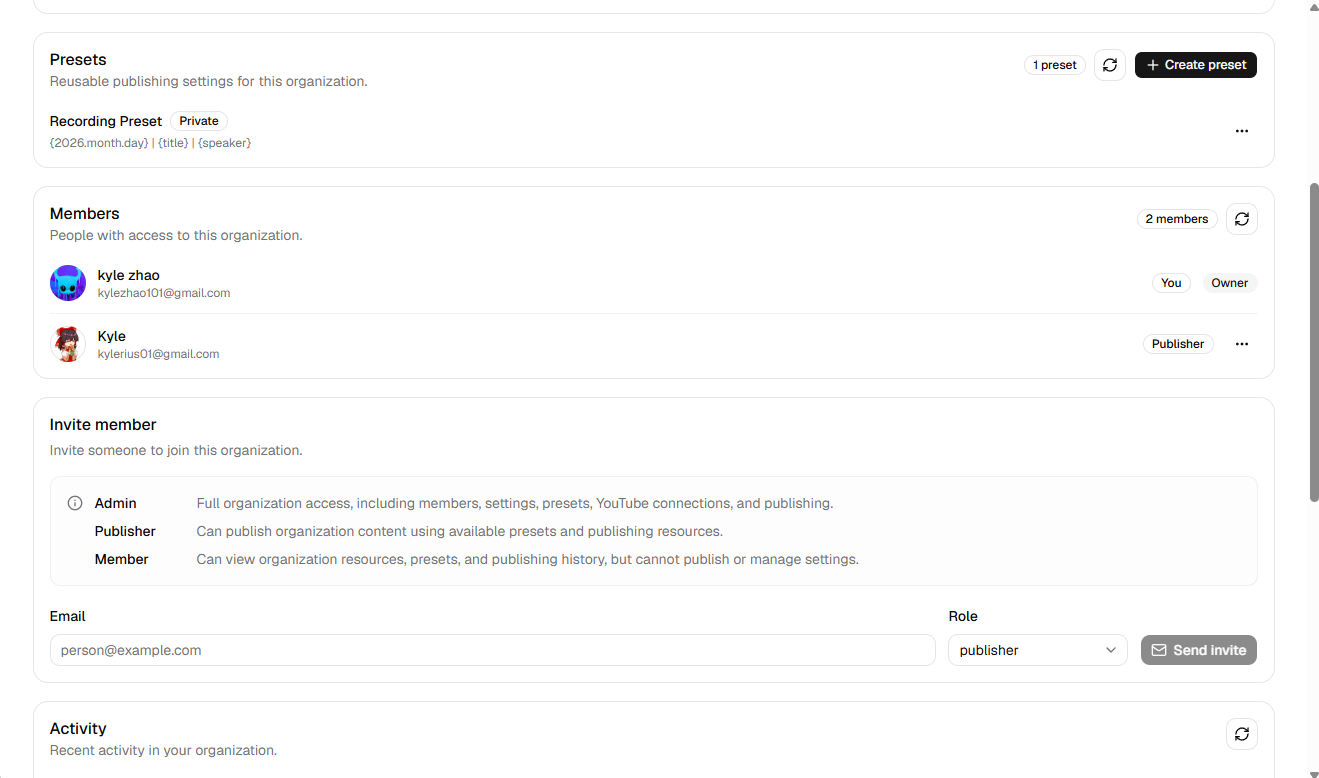
Organization invitations are delivered by email through Resend. After accepting an invitation through the web application, users can sign in to the desktop app and access the shared workspace based on their assigned role.
YouTube authentication is handled differently for personal and organization publishing. Personal credentials remain on-device, while organization refresh tokens are encrypted with Fernet before being stored server-side. For organization uploads, the backend exchanges the stored refresh token for a short-lived Google access token, so the desktop worker never receives the organization's long-lived credential.
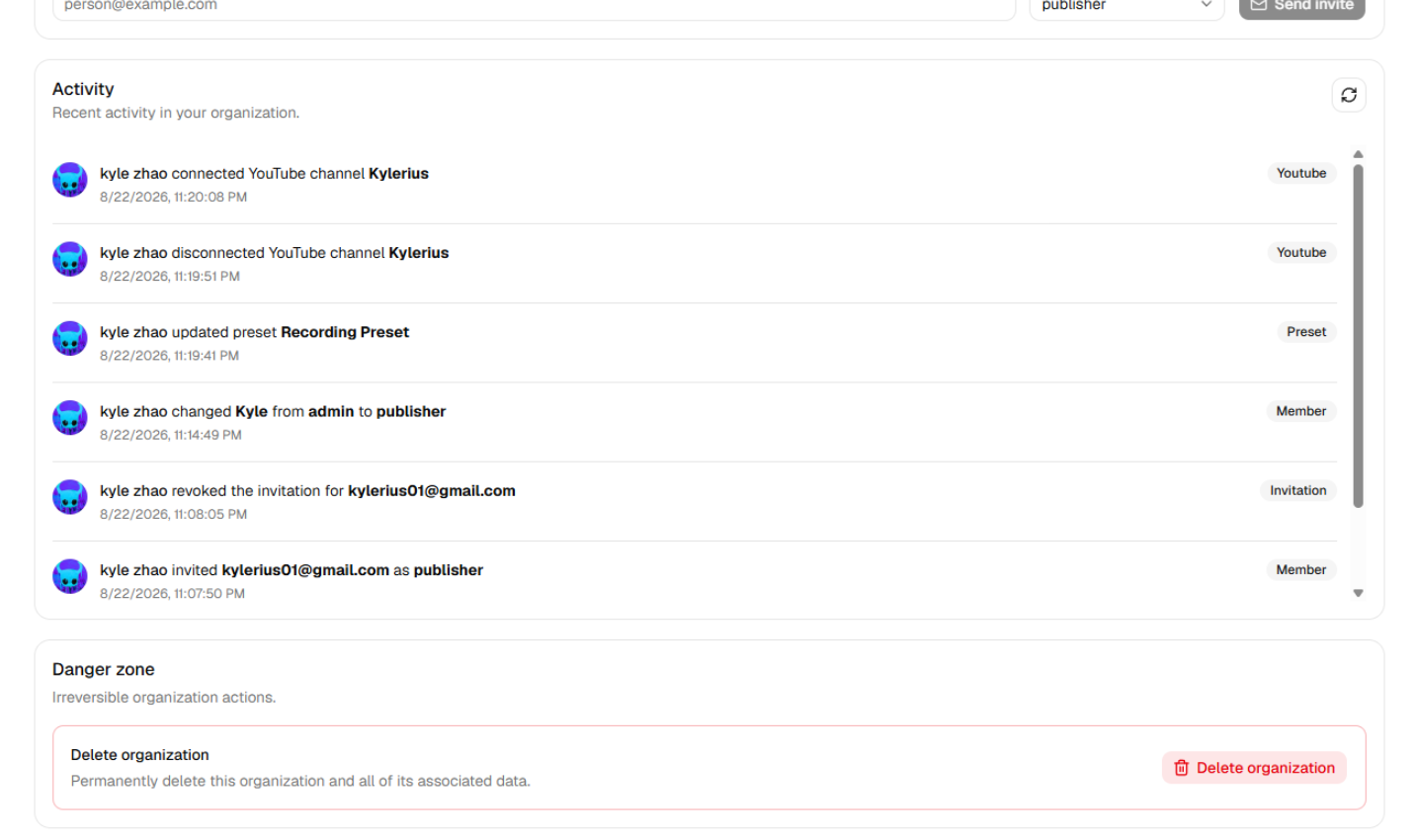
Organization actions are recorded in an audit log to provide visibility into changes made within a shared workspace. Events such as invitations, role changes, preset updates, and YouTube connection changes record the actor, timestamp, action, and relevant context.
Original Azure Architecture
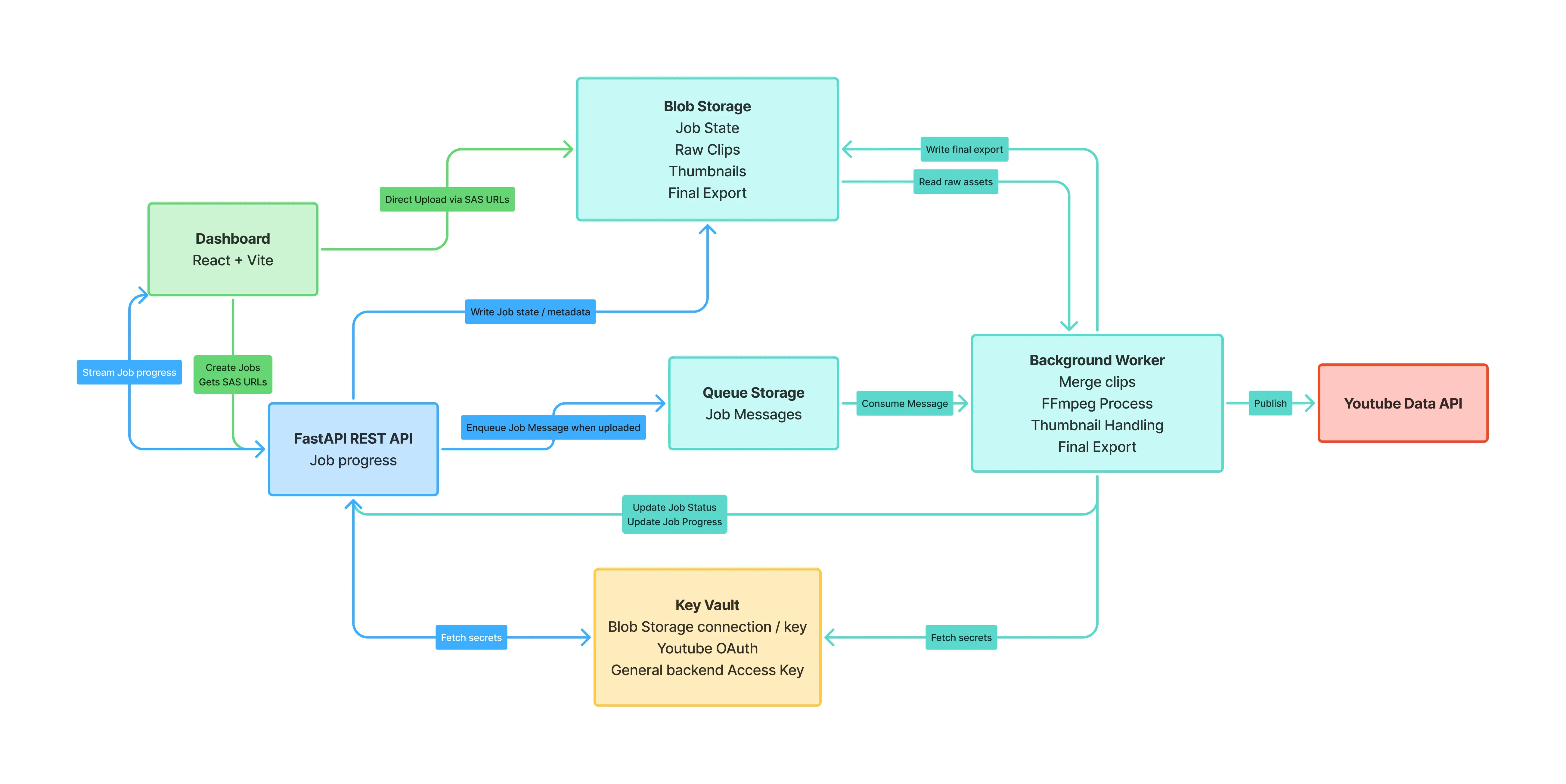
The project originally began as a cloud-based media processing platform built on Azure. The system was designed around asynchronous job processing to support large media uploads and long-running transcoding tasks.
Media files and generated assets were stored in Azure Blob Storage, while job requests were submitted through a FastAPI backend and processed by background workers. Azure Queue Storage was used to decouple the user interface from video processing workloads, allowing uploads, transcoding, thumbnail generation, and publishing operations to execute independently. Job progress and status updates were streamed back to the dashboard to provide real-time feedback.
The architecture was intentionally designed around distributed services to improve scalability and fault tolerance. However, because weekly recordings frequently exceeded tens of gigabytes, storage and compute costs quickly became impractical under student cloud credits. This ultimately motivated a redesign into a desktop-first application that leveraged local compute resources while preserving much of the original job-based workflow.